HINATA Control Center
Introduction
The HINATA Control Center is used to manage various settings of HINATA / HINATA Lite and provides functions such as card read/write.
No local download or installation required. Simply access via browser in networked state:
cc.neri.moe
to use directly.
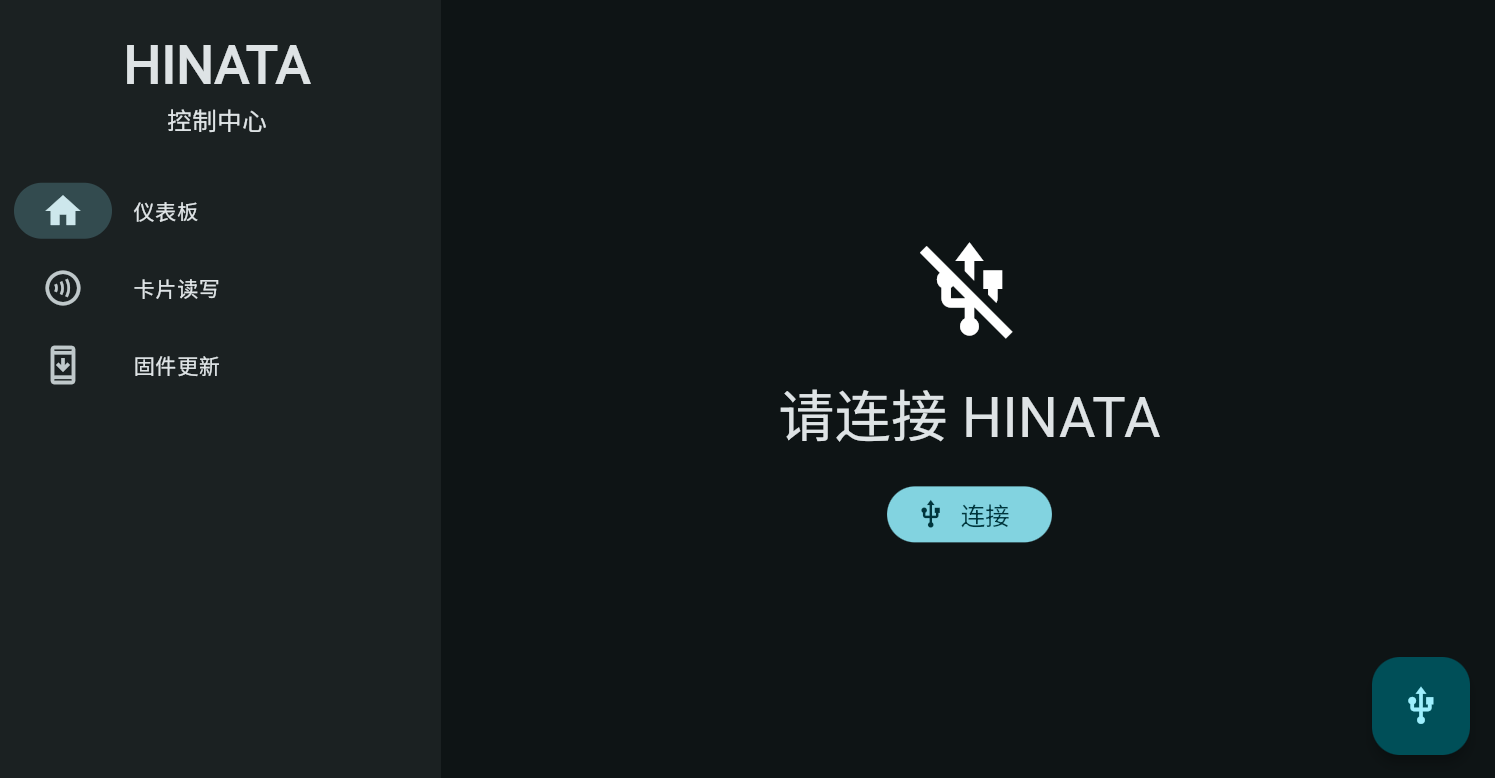
Connecting the Reader
Click the Connect button on the page, or the quick button in the bottom-right corner. The browser will pop up a device selection window (example in Chrome):
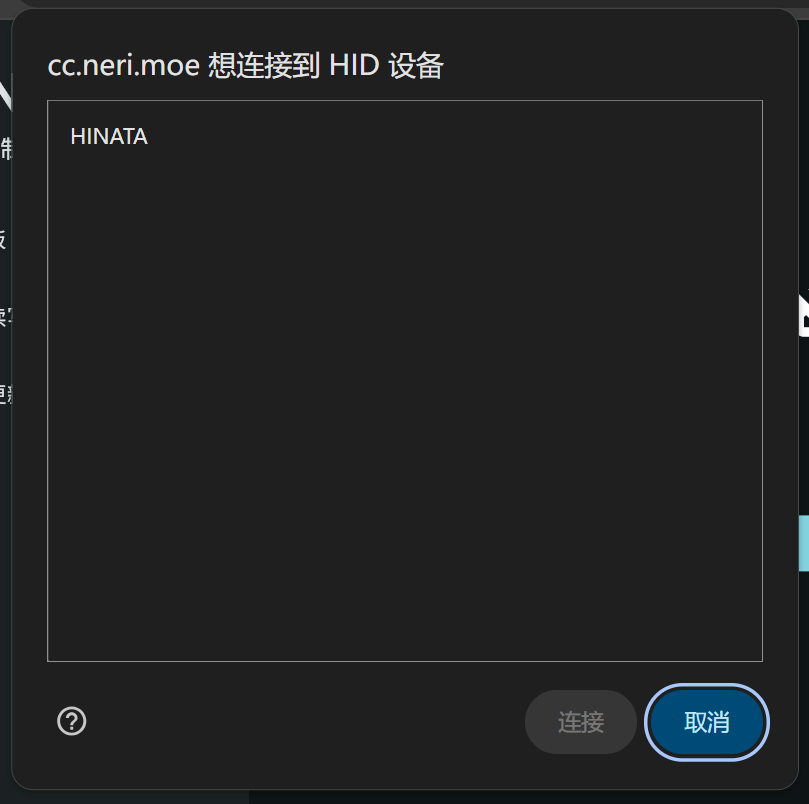
Please select HINATA from the list and click Connect.
Sidebar Function Overview
Dashboard
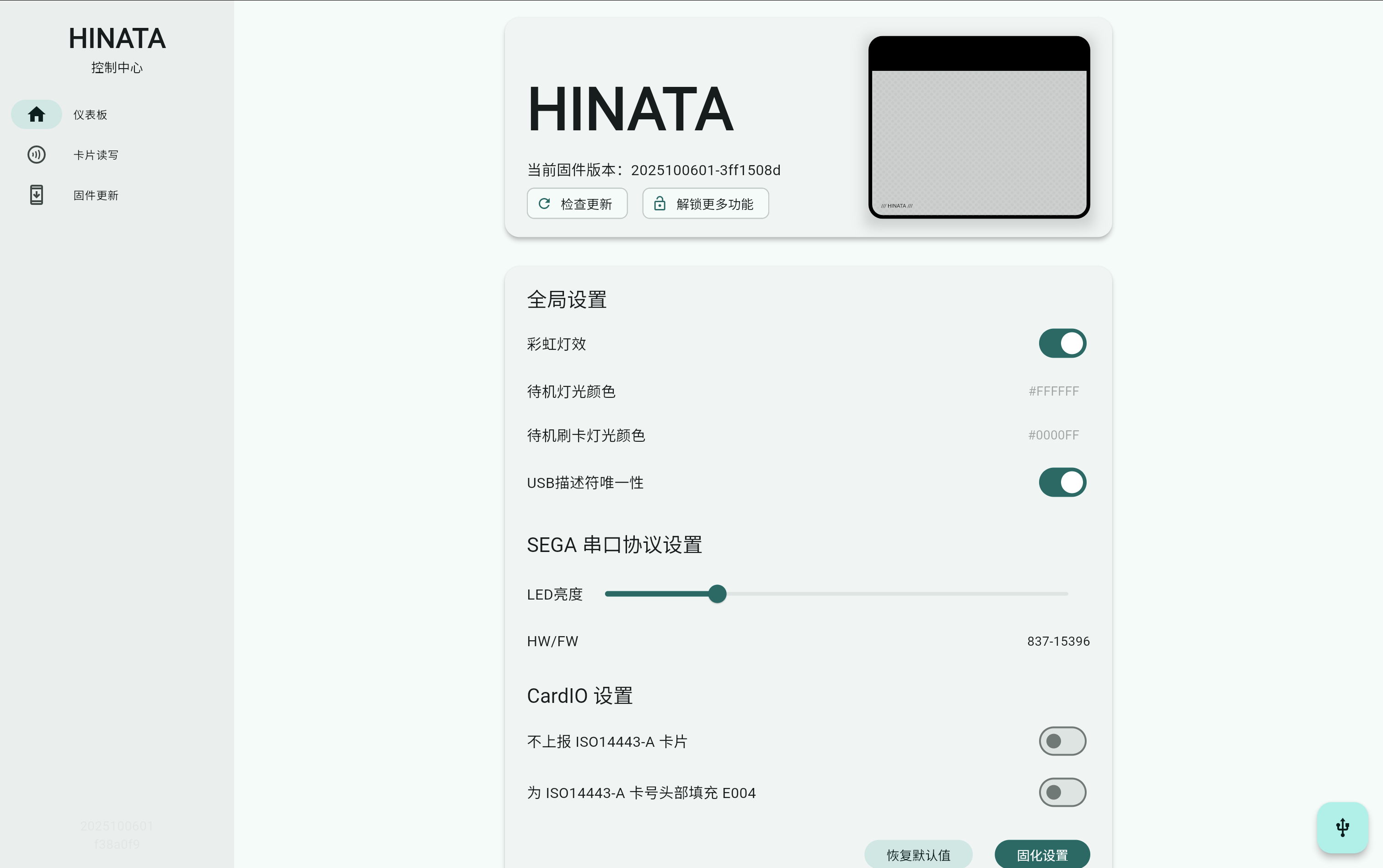
The dashboard page displays the current reader's firmware version and provides current reader settings options.
Card Read/Write
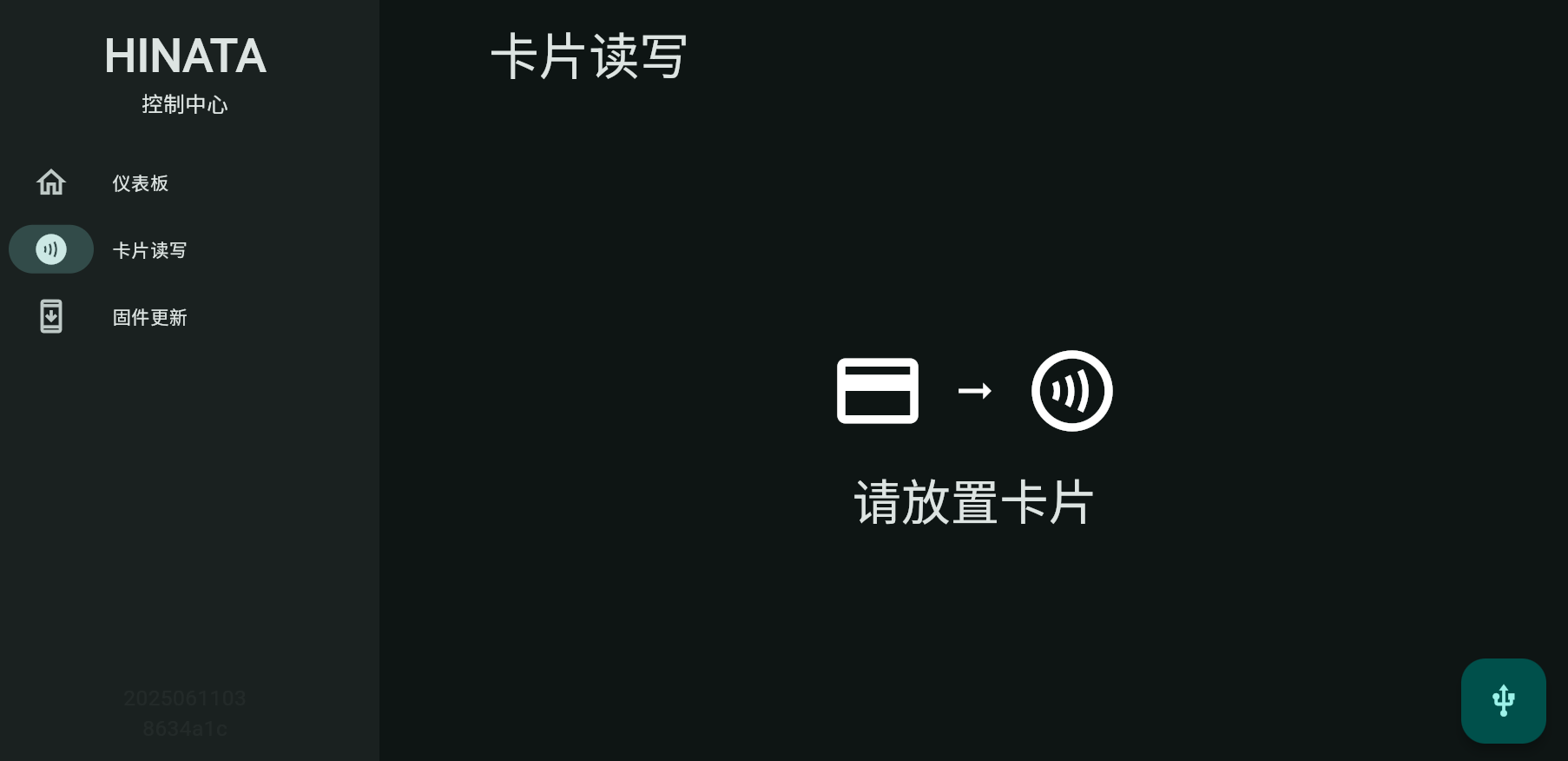
After entering the card read/write page, place the card to be operated on the reader:
After recognizing the card, the following interface will be displayed:
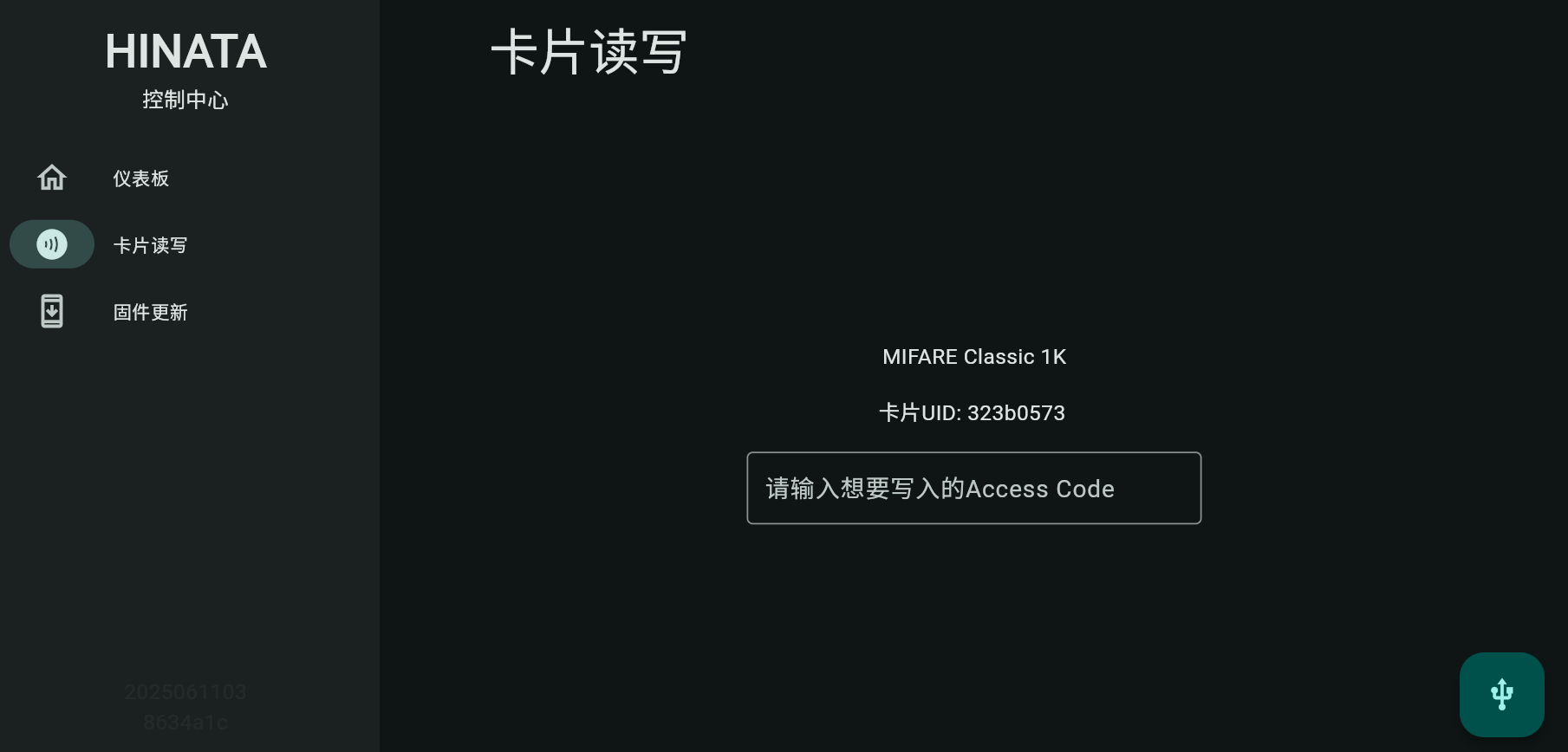
- When writing a card, enter the 20-digit Access Code in the input box
- Press Enter after input to write the card number
- If no input box for entering the card number appears, the card does not support writing
Firmware Update
WARNING
The current version does not support direct firmware updates through the control center on Windows systems.
Please download the firmware file and update manually according to the documentation.
TIP
If you are using macOS / Linux / ChromeOS or other systems, you can complete the firmware update directly within the webpage.
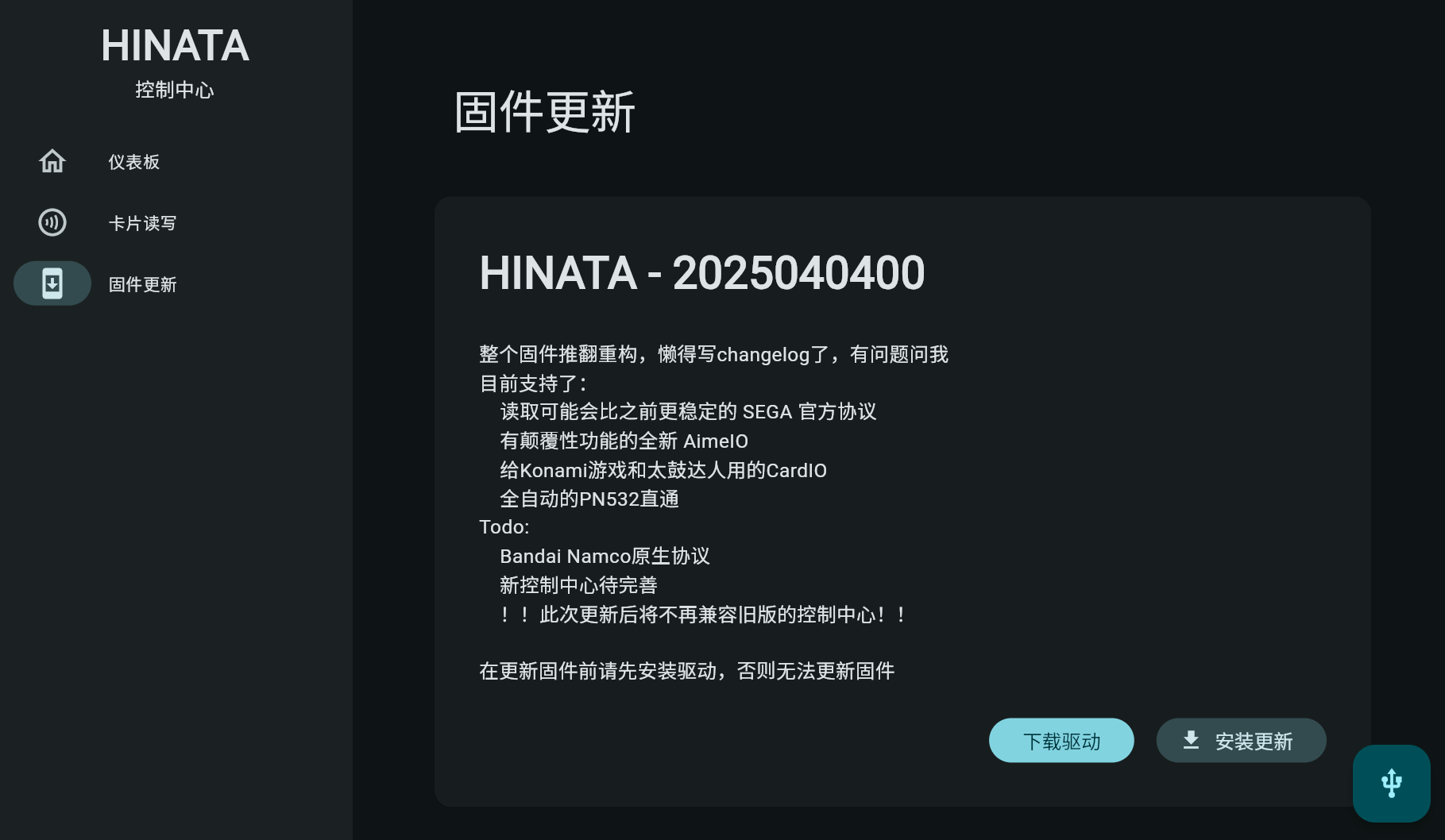
Click the Install Update button in the bottom-right corner of the card to start the firmware update process.